
Understanding Game Crashes on PC
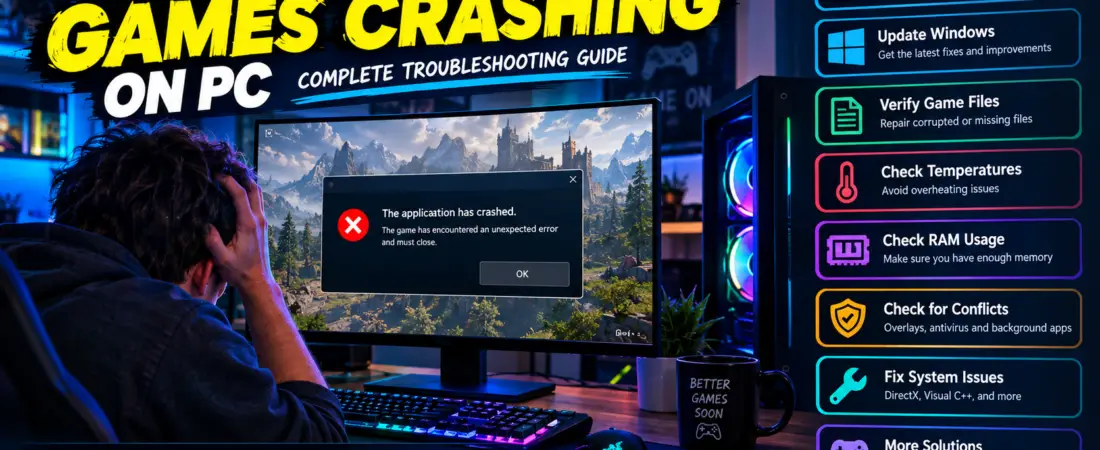
Game crashes on PC are a prevalent issue that disrupts the gaming experience. A crash can interrupt not just the current session but can cause significant setbacks in overall gameplay, especially in lengthy titles or competitive settings. When a game fails, players often find themselves frustrated and uncertain if they can resume their progress without loss. Thus, identifying the root causes of these interruptions becomes critical for gamers seeking to maintain their immersive experience.
Common Types of Technical Failures
There are several types of technical issues that can occur during gameplay. One common type is the freeze, where the game becomes unresponsive but remains on-screen. This can lead to players having to forcefully exit the application. Another prevalent issue is the crash-to-desktop (CTD), where the software suddenly becomes unresponsive and closes, returning the player to the desktop environment without any warning. Performance issues, such as stuttering or significant frame drops, can also be classified within the broader context of system instability, as they can lead to a negative impact on playability. For more details on performance issues, see our guide on how to fix FPS drops and stuttering in PC games.
Why Game Crashes on PC Occur
Technical failures can occur for a multitude of reasons, often linked to hardware limitations, software incompatibility, or even corrupted files. For instance, inadequate system specifications may struggle under the demands of modern graphics, leading to performance issues or potential shutdowns. Similarly, conflicts with background applications or system processes may also precipitate these interruptions. Understanding these distinctions allows players to diagnose and potentially rectify the underlying issues contributing to gameplay disruptions.
Manual troubleshooting can range from updating graphics drivers, optimizing settings, to ensuring that the game files themselves are intact and free from corruption. Addressing these factors is crucial in reducing the frequency of game crashes on PC, thus enhancing the overall gaming experience. By being aware of the types of failures and their common causes, players can better prepare themselves to mitigate incidents and enjoy uninterrupted gameplay.
Common Causes of Game Crashes on PC
System instability can be incredibly frustrating for players, often stemming from multiple underlying causes. One of the most prevalent issues is outdated graphics drivers. These drivers are essential for the optimal performance of games, as they facilitate communication between the operating system and hardware components. When not updated, they may lead to instability, causing applications to fail.
File Corruption and Overheating Issues
Another significant cause is corrupted data. These files can become damaged during installation or due to system malfunctions, resulting in unexpected behavior or failures while playing. Regularly verifying the integrity of your installation through the game client can help alleviate these issues.
Overheating represents a considerable risk to both gameplay and hardware. If the internal components of the PC, such as the GPU or CPU, exceed their safe operating temperatures, they may throttle performance or shut down entirely, leading to game crashes on PC. Ensuring proper ventilation and considering additional cooling solutions can mitigate this risk.
RAM and System Stability
Insufficient RAM can also impede performance, especially for memory-intensive titles. Running out of memory while playing can cause stuttering or sudden closures. Upgrading RAM or closing unnecessary applications can enhance gaming performance and prevent technical failures.
Windows-related issues are also a common culprit for instability. Various system-level problems, such as missing updates or corrupted system files, can disrupt gameplay. Regularly updating the operating system and performing system maintenance can reduce the likelihood of such game crashes on PC.
Software Conflicts and Background Apps
Incompatible software, including background applications, may conflict with games, leading to instability. This includes overlays, which can be problematic with certain titles. Similarly, DirectX and Visual C++ redistributables may require updates to ensure compatibility and performance, reducing technical interruptions.
Antivirus software can inadvertently interfere with game files, mistaking them for threats. Configuring exclusions for games within antivirus programs can prevent these interruptions. Additionally, unstable overclocking settings can create system instability, resulting in crashes. Reverting to default settings may be necessary to maintain stability.
Lastly, hardware limitations can play a significant role in whether a game functions correctly. If a PC lacks the required specifications, it may struggle to run modern games, leading to game crashes on PC. Monitoring hardware performance and upgrading components when necessary can enhance overall gaming experiences.
Diagnosing the Cause of Game Crashes on PC
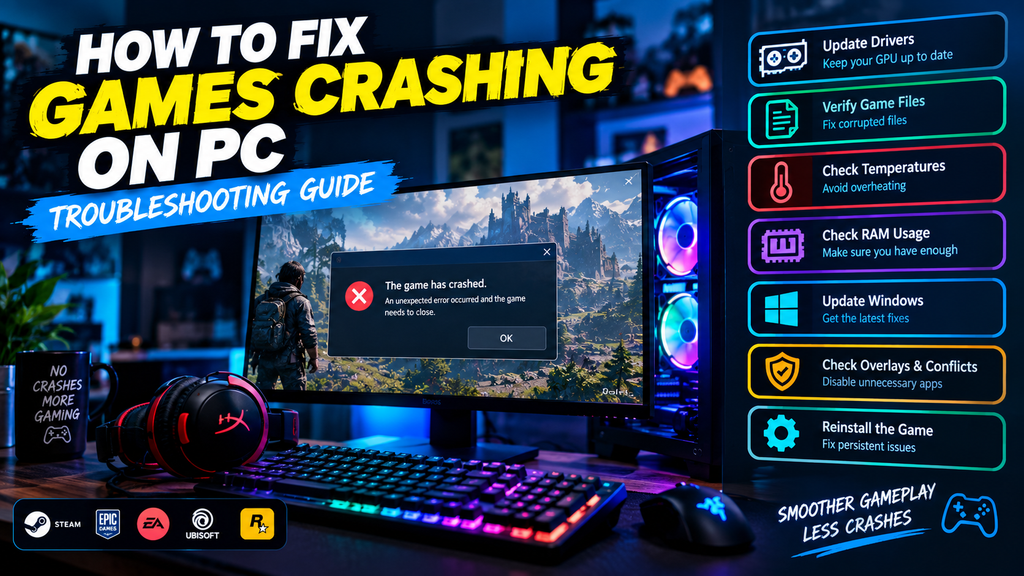
When a game crashes on a PC, it can be frustrating and disruptive. However, before making adjustments to the system settings or reinstalling the software, it is crucial to ascertain the underlying reasons for the failure. A thorough diagnosis can help pinpoint whether the problem lies within the game itself, the operating system, or hardware specifications.
Observing System Behavior During Instability
One effective approach to diagnosing a failure is to observe the behavior of the system before and during the incident. For instance, paying attention to specific patterns can provide valuable clues. If a game fails consistently at the same point or during a particular action, it suggests that the issue may be related to that specific content or feature, rather than the entire system. This could involve a bug or glitch tied to the software, necessitating updates or patches from the developers to fix game crashes on PC.
Monitoring Resources to Prevent Failures
Another significant indicator can be derived from system resource usage. Monitoring CPU and GPU performance can reveal if the hardware is being overtaxed, leading to a crash. Users should check the Task Manager or resource monitoring software to ensure that the application is not exceeding the system’s capacity. For instance, high temperatures or memory usage spikes preceding a failure can indicate that the computer is struggling to maintain stability and avoid game crashes on PC.
It is also important to take note of any error messages that appear upon crashing. Error codes or logs can provide specific insights into what went wrong. These logs might be accessible within the settings or through the operating system’s event viewer. Documenting these messages can assist in searching for solutions or communicating effectively with technical support.
Ultimately, accurately diagnosing the cause of a failure lays the groundwork for effective troubleshooting. By distinguishing whether the issue is specific to the software or pertains to the overall hardware integrity, users can make more informed decisions about the necessary steps to resolve the issue.
Safe and Effective Troubleshooting Solutions
Troubleshooting game crashes on a PC can often feel daunting, but employing a systematic approach can help identify and resolve issues efficiently. Here is a detailed series of step-by-step solutions that cater to both beginners and experienced gamers.
Verifying Files to Fix Game Crashes on PC
One of the primary troubleshooting steps is verifying installation data, especially for those using platforms such as Steam. Open the Steam client, navigate to your Library, right-click on the game that is failing, and select ‘Properties.’ Within the ‘Local Files’ tab, click on ‘Verify Integrity of Game Files.’ This process will check for any corrupted or missing files and replace them accordingly, thus potentially eliminating game crashes on PC.
Furthermore, keeping your operating system updated is crucial for compatibility and performance. Windows updates often include essential patches and improvements that can resolve underlying issues. To check for updates, go to ‘Settings,’ select ‘Update & Security,’ and click on ‘Check for updates.’ This will ensure that both Windows and any integrated system components function optimally.
Driver Stability and Performance
In addition to updating Windows, it is essential to update your GPU drivers. Graphics drivers play a significant role in gaming performance and stability. Manufacturers such as NVIDIA and AMD frequently release updates that not only enhance performance but also fix bugs that could lead to game crashes on PC. Accessing the respective NVIDIA or AMD software will allow you to check for the latest updates and install them as needed.
Another vital component of system stability is hardware performance. Overheating or faulty components can lead to failures during intense gaming sessions. Utilizing software to monitor your temperature and system usage can help in determining if hardware issues are at play. Make sure your PC’s cooling system operates effectively and that all components are securely connected to prevent game crashes on PC.
In conclusion, systematically verifying files, updating your operating system and drivers, and ensuring hardware stability are key troubleshooting methods. These steps will not only assist in resolving failures but also enhance overall gaming experience.
Verifying and Repairing Installation Data
One of the most effective methods to resolve game crashes on a PC is through the process of verifying and repairing corrupted data. Most digital platforms, such as Steam, offer built-in tools that specifically cater to this need. Ensuring the integrity of these files is crucial; damaged or missing data can often lead to instability and technical failures during gameplay.
Steam Verification for Game Crashes on PC
To begin with, if you are using Steam as your launcher, the verification process is straightforward. Navigate to your library, right-click on the game you wish to check, and select ‘Properties.’ Under the ‘Local Files’ tab, you will find an option labeled ‘Verify Integrity of Game Files.’ This feature scans the data against the original versions stored on Steam’s servers, identifying any discrepancies that cause game crashes on PC.
Should any issues arise, Steam will automatically replace the corrupted or missing files, which can remedy various problems associated with technical failures. This method not only helps in reinstating the correct data but also minimizes the chances of encountering the same issues in the future.
Other Platforms and Maintenance
In addition to Steam, other launchers like Epic Games Store or Origin provide similar functionalities. For instance, the process in the Epic Games platform involves selecting the game in your library, clicking on the three dots next to it, and choosing ‘Verify.’ Likewise, Origin has a feature named ‘Repair,’ allowing you to fix software installed through its client and stop game crashes on PC.
Verifying and repairing files should be a preliminary step whenever players notice unexpected failures or performance downgrades. Regularly checking for data integrity is an essential part of maintaining optimal performance and ensuring a smooth gaming experience with minimal game crashes on PC.
In conclusion, verifying and repairing corrupted data is not just a troubleshooting step, but a vital practice for any PC gamer looking to avoid failures that stem from file issues. By taking advantage of the tools provided by the launchers, users can ensure their software runs as intended, enhancing enjoyment and reducing frustration.
Updating Drivers and Windows for Stability
Keeping your graphics drivers and Windows operating system up to date is essential for maintaining optimal performance and stability in gaming. Outdated drivers can lead to compatibility issues, graphical glitches, and game crashes on PC, significantly impacting your gaming experience. Therefore, regular updates are imperative.
How to Update Graphics Drivers
To update your graphics drivers, start by identifying the model of your graphics card. You can do this by accessing the Device Manager in Windows. Once you know your graphics card model, visit the manufacturer’s website—such as NVIDIA, AMD, or Intel—to download the latest drivers. These websites often feature an auto-detect tool that helps identify your specific hardware and provide the appropriate updates. Once downloaded, installing the new drivers typically involves running an executable file and following the on-screen prompts to prevent game crashes on PC.
Additionally, you can utilize third-party software tools that manage driver updates automatically. However, ensure you choose reputable software to avoid potential security risks. Some operating systems, including Windows, also offer built-in utilities to check for updates on your drivers through Device Manager.
Windows Updates and System Restarts
Updating Windows itself is equally critical. Not only does Microsoft release security patches to protect your system, but these updates often include enhancements that improve system compatibility with newer applications and hardware, including games. To update Windows, navigate to the Settings menu, select ‘Update & Security,’ and click on ‘Check for updates.’ Allow the system to download and install any available updates. It is important to restart your computer after installation to complete the process, which will ensure all changes are applied effectively to stop game crashes on PC.
In conclusion, maintaining updated graphics drivers and Windows is vital for preventing failures in gaming. Regularly checking for updates can significantly enhance your gaming experience, ensuring stability and improved performance.
Monitoring and Managing System Temperature
Overheating is a significant factor that can adversely affect gaming performance and stability on a PC. When the internal components of a computer, such as the CPU and GPU, reach elevated temperatures, their ability to perform efficiently diminishes. This not only leads to potential game crashes on PC but can also result in long-term hardware damage. Therefore, it is crucial to monitor system temperatures actively and take necessary steps to manage thermal performance.
Using Monitoring Software
To begin addressing overheating issues, utilizing temperature monitoring software is essential. Programs like MSI Afterburner, HWMonitor, or Core Temp allow users to observe real-time temperatures of various components. Regularly checking these readings can help identify trends and anomalies. Ideally, CPU temperatures should not exceed 80 degrees Celsius under load, while GPU temperatures should remain below 85 degrees Celsius. If temperatures consistently approach these thresholds, it may be indicative of an underlying problem that requires attention to avoid game crashes on PC.
Airflow Optimization and Cleaning
One common cause of overheating is dust accumulation within the PC case, which can obstruct airflow and reduce cooling efficiency. Regular cleaning of components, particularly fans and heat sinks, is advisable. Using compressed air to gently remove dust can significantly improve thermal performance. Additionally, ensuring that the air vents are clear and unobstructed promotes better airflow. Proper placement of the PC case is also vital. Placing it in a well-ventilated area away from heat sources can help maintain a lower internal temperature and prevent game crashes on PC.
Upgrading cooling solutions is another effective method to prevent overheating. Consider investing in higher-quality air or liquid cooling systems if standard cooling does not provide adequate thermal management. Augmenting case fans or adjusting fan curves to increase airflow under load can also support better temperature control.
In conclusion, monitoring and managing system temperature is a critical aspect of maintaining performance and stability during gaming sessions. By employing monitoring tools, ensuring proper cleaning practices, and optimizing thermal solutions, users can mitigate overheating-related issues and enhance their overall gaming experience.
Common Mistakes to Avoid and Troubleshooting Checklist
Troubleshooting technical failures on PC can be a frustrating experience, particularly for those who may not be well-versed in technical solutions. To streamline this process, it is essential to adhere to a systematic approach and avoid common pitfalls. Below is a checklist comprising critical do’s and don’ts during troubleshooting.
Troubleshooting Do’s for Game Crashes on PC
Do:
- Check System Requirements: Ensure that your PC meets the minimum system specifications required for the game. This includes verifying the processor, RAM, and graphics card capabilities to avoid game crashes on PC.
- Update Drivers: Regularly update your graphics and audio drivers to the latest versions. Outdated drivers can often lead to compatibility issues that cause technical failures.
- Verify Installation Data: Use the launcher’s function to verify the integrity of files. Corruption of these files can lead to unexpected game crashes on PC.
- Monitor Temperature: Overheating can result in system instability. Use software to monitor CPU and GPU temperatures while gaming to prevent failures.
- Check for Background Applications: Close unnecessary applications running in the background. Resource-intensive processes can interfere with performance and cause game crashes on PC.
Troubleshooting Don’ts
Don’t:
- Ignore In-Game Settings: Avoid cranking up the graphics settings beyond your system’s capability. This can overwhelm your hardware and lead to game crashes on PC.
- Neglect Windows Updates: Failing to install crucial operating system updates can expose your PC to bugs that affect performance. Always ensure your OS is up to date to stop technical failures.
- Rush to Reinstall: While reinstalling might seem like a quick fix, it is not always the solution. This step should only be taken after verifying files and undertaking other troubleshooting steps for game crashes on PC.
- Assume Hardware is Faulty: Before jumping to conclusions about hardware malfunctions, investigate software-related issues. Often, instability can be traced back to software conflicts or driver issues.
- Skip Backup: Never forget to back up your save files before making any substantial changes or re installs. This ensures that your progress is preserved regardless of the outcome of fixing game crashes on PC.
This checklist provides a clear framework to enhance your troubleshooting efficiency. By systematically following these guidelines, you can minimize the likelihood of encountering the same issues in the future, ensuring a more enjoyable gaming experience.
When to Reinstall and Consider Hardware Implications
Technical failures on your PC can sometimes stem from complex issues related to software or hardware. Determining whether a game needs to be reinstalled or whether there are underlying hardware concerns is essential for effective troubleshooting.
Signs You Need to Reinstall to Fix Game Crashes on PC
There are clear scenarios that may indicate the need for a reinstallation. If you experience consistent failures upon launching the software, or if the application fails to start altogether, a problematic installation may be the culprit. Reinstallation can resolve issues caused by corrupted files or improper installations due to system updates or changes. Before proceeding with reinstallation, however, it’s prudent to ensure that your data is fully up to date, and all patches or updates from the developer have been applied to stop game crashes on PC.
Hardware Culprits and Professional Advice
On the other hand, if failures occur intermittently or during particularly demanding segments of the game, hardware may be the more likely culprit. Issues such as high temperatures, failing components, or insufficient power supply can lead to instability during resource-intensive gaming sessions. In these cases, monitoring your system’s performance using tools can help identify whether the failures correlate with hardware limitations or irregularities, such as CPU overheating or insufficient RAM. For community-driven hardware advice to fix game crashes on PC, Tom’s Hardware Forum is an excellent resource.
A vital aspect of troubleshooting is recognizing the signs of potential hardware issues. If you detect artifacts on screen, experience sudden drops in frame rates, or hear unusual sounds from your hardware, it may be time to consult a professional. Prioritizing safe practices, such as ensuring all components are well-ventilated and connections are secure, will also aid in prolonging the life of your hardware and preventing game crashes on PC.
Understanding when to reinstall a game versus investigating hardware issues can save time and enhance your overall gaming experience. Regular maintenance and updates, combined with attentiveness to any signs of hardware distress, will contribute to a smoother gaming experience.