
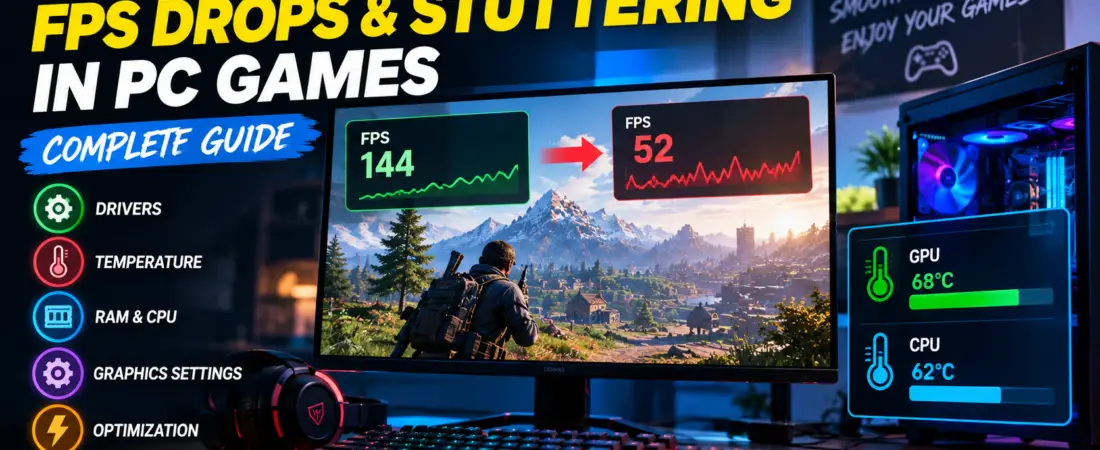
Nothing is more frustrating than launching your favorite game and suddenly experiencing FPS drops, stuttering, freezing, or inconsistent performance. These issues can affect both low-end and high-end PCs, making games feel slow, unresponsive, or unpleasant to play.
The good news is that FPS drops and stuttering usually have identifiable causes. In many cases, a few adjustments can significantly improve gaming performance. For more tips on optimizing your setup, check out our GearUP Booster review to see how network optimization can help.
This guide explains the most common reasons for FPS drops and stuttering and provides practical solutions that PC gamers can use to improve their experience.
What Is the Difference Between Low FPS and Stuttering?
Many players use these terms interchangeably, but they are not exactly the same.
Low FPS
Low FPS means your computer cannot generate enough frames per second. Games may feel slow or less smooth.
Examples:
- 30 FPS
- 40 FPS
- 50 FPS
FPS Drops
FPS drops happen when the frame rate suddenly falls.
Example:
- 120 FPS → suddenly drops to 40 FPS
Stuttering
Stuttering happens when frame delivery becomes inconsistent. According to PC Gamer, micro-stuttering can often be fixed by using Variable Refresh Rate (VRR) or capping your frame rate.
Example:
- The game shows 100 FPS but feels choppy.
Understanding the difference helps identify the real problem.
Why Do FPS Drops and Stuttering Happen?
Several factors can affect gaming performance:
- Outdated graphics drivers
- Overheating CPU or GPU
- Background applications
- High graphics settings
- Insufficient RAM
- CPU bottleneck
- Storage problems
- Shader compilation
- Power-saving settings
- Poor game optimization
Finding the exact cause is the first step toward solving the problem.
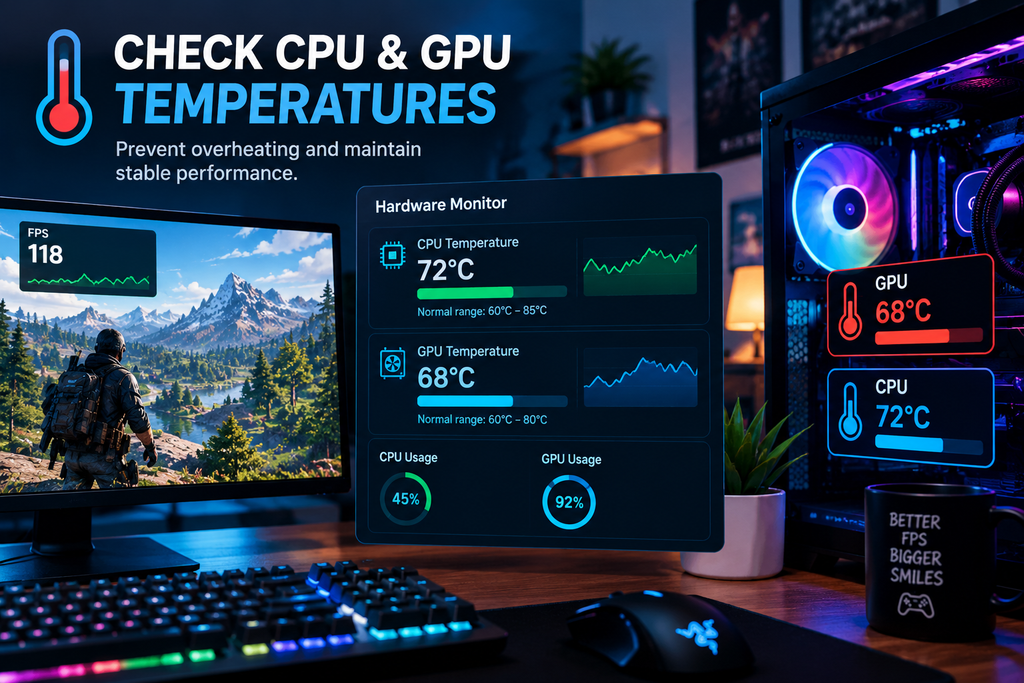
Check CPU and GPU Temperatures
Overheating is one of the most common causes of performance issues.
When temperatures become too high, components reduce their speed automatically to protect themselves. This is called thermal throttling.
Typical safe temperatures:
| Component | Normal Gaming Temperature |
|---|---|
| CPU | 60–85°C |
| GPU | 60–80°C |
If temperatures exceed these values:
- Clean dust from fans
- Improve airflow
- Replace thermal paste if necessary
- Increase fan speed
Update Your Graphics Drivers
Old drivers can cause:
- FPS drops
- Crashes
- Stuttering
- Performance issues
Download the latest drivers from:
- NVIDIA
- AMD
- Intel
Graphics driver updates often improve performance in newer games.
Close Background Applications
Many applications continue running while you play.
Examples:
- Web browsers
- Discord
- Streaming software
- Launchers
- Recording software
These applications consume:
- RAM
- CPU power
- Disk usage
Closing unnecessary programs can improve game performance.
Lower the Correct Graphics Settings
Not all graphics settings affect performance equally.
| Setting | Performance Impact |
|---|---|
| Ray Tracing | Very High |
| Shadows | High |
| View Distance | High |
| Effects | Medium |
| Anti-Aliasing | Medium |
| Textures | Depends on VRAM |
If your FPS is low, try reducing:
- Shadows
- Ray Tracing
- View Distance
- Post-processing effects
This often provides significant FPS gains.
Check RAM Usage
Modern games often require:
- 16 GB RAM recommended
- 32 GB for heavy multitasking
If RAM becomes full:
- Games may stutter
- Loading becomes slower
- FPS becomes inconsistent
Close unused programs and ensure enough memory is available.
Check CPU and GPU Usage
Monitoring usage can help identify bottlenecks. For community-driven troubleshooting, Tom’s Hardware Forum is an excellent resource for discussing specific hardware bottlenecks.
GPU Usage
If GPU usage stays around:
95–100%
Your graphics card is working at full capacity.
CPU Usage
If CPU usage reaches:
90–100%
The processor may limit performance.
A bottleneck can happen when one component is significantly weaker than the other.
Make Sure the Dedicated GPU Is Being Used
Laptop users often experience poor performance because games use integrated graphics instead of the dedicated GPU.
Check your system settings and ensure games run on:
- NVIDIA GPU
- AMD GPU
Instead of integrated graphics.
Use High Performance Power Mode
Windows power settings affect gaming performance.
Enable:
Settings → Power → High Performance
This allows your CPU and GPU to work at full speed.
Check Storage Space
A nearly full drive can reduce performance.
Try to keep:
- At least 15–20% free space
SSD drives generally provide better performance than traditional HDDs.
Shader Compilation Stuttering
Many modern games compile shaders during gameplay.
This may cause:
- Temporary stutters
- FPS drops
In many cases, these issues disappear after playing for some time.
This is normal behavior in some games.
FPS vs Monitor Refresh Rate
Your monitor refresh rate matters.
Examples:
| Monitor | Maximum Visible FPS |
|---|---|
| 60Hz | 60 FPS |
| 144Hz | 144 FPS |
| 240Hz | 240 FPS |
Higher refresh rates provide smoother gameplay if your PC can generate enough frames.
Why Powerful PCs Still Experience FPS Drops
Even expensive gaming PCs can suffer from:
- Poor optimization
- CPU bottlenecks
- Driver problems
- Shader compilation
- Overheating
- Background applications
More expensive hardware does not automatically guarantee perfect performance.
Quick Troubleshooting Checklist
If your games stutter:
✅ Update drivers
✅ Check temperatures
✅ Close background apps
✅ Lower shadows
✅ Disable unnecessary effects
✅ Enable high performance mode
✅ Check RAM usage
✅ Update Windows
✅ Use SSD storage
✅ Monitor CPU and GPU usage
These steps solve many common problems.
When Should You Upgrade Your PC?
You may need hardware upgrades if:
- Your GPU is constantly overloaded
- CPU usage remains near 100%
- RAM is insufficient
- Storage is too slow
Common upgrades:
- More RAM
- Faster SSD
- Better GPU
- Better CPU
Frequently Asked Questions
Why does my FPS suddenly drop?
Common reasons include overheating, drivers, background applications, or game optimization issues.
Can overheating cause FPS drops?
Yes. Thermal throttling can significantly reduce performance.
Why is my game stuttering even with high FPS?
Frame delivery may be inconsistent because of drivers, shader compilation, CPU bottlenecks, or background tasks.
Does more RAM increase FPS?
Not always, but insufficient RAM can cause stuttering.
Can updating drivers improve FPS?
Yes. Driver updates often improve game performance.
Final Verdict
FPS drops and stuttering can affect any gaming PC, but most problems have practical solutions.
Start by checking temperatures, drivers, graphics settings, RAM usage, and background applications.
Even small changes can produce noticeable improvements.
By understanding the real cause of performance problems, you can enjoy smoother gameplay and a better PC gaming experience.